
This guide shows you how to create an API key for the optilyz API, and how to replace or revoke it.
You create and manage API keys yourself in your account settings. optilyz does not send you a key.
Before you start
- You log in to the optilyz dashboard directly. When you open optilyz inside Emarsys or Salesforce Marketing Cloud, the dashboard does not show Settings.
- You know which optilyz account the key is for. A key works only for the account that you create it in.
1. Open the settings
In the dashboard menu on the left, click Settings.
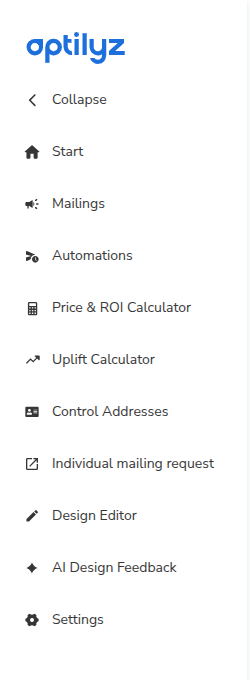
The settings open on a separate page. This page is in English only.
2. Choose the account
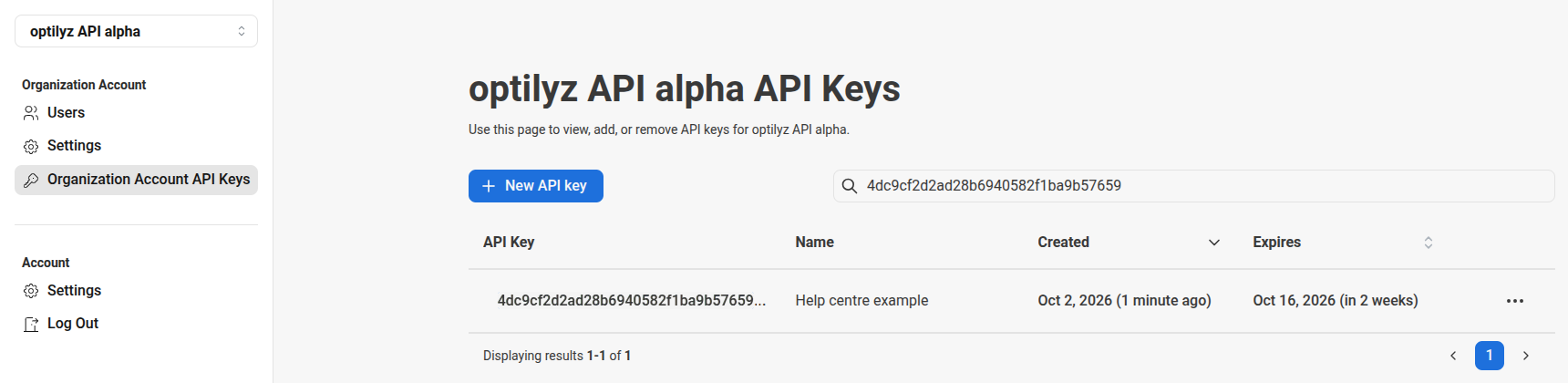
At the top left, check the account name. If you work in more than one account, the settings can open a different account than the one you have open in the dashboard. Click the account name and choose the correct account.
3. Open the API keys
In the menu on the left, under Organization Account, click Organization Account API Keys.
The page title shows the account name, for example "optilyz API alpha API Keys". The list shows all API keys of this account, with their name, the date they were created and the date they expire.
4. Create the key
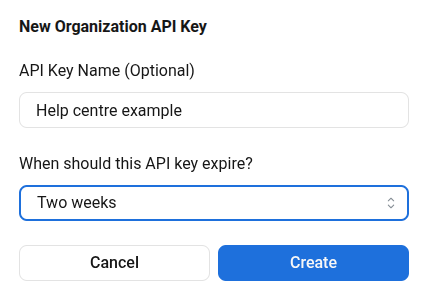
- Click New API key.
- In API Key Name (Optional), enter a name that tells you where you use the key, for example the name of your system.
- In When should this API key expire?, choose how long the key works: Two weeks, One month, Three months, Six months, One year or Never.
- Click Create.
5. Copy the key
optilyz shows the full key only once. Copy it now and store it in a safe place, for example in your password manager or in the settings of your system.
- Click the copy icon next to the key. If copying does not work, click Manually copy API key.
- Click Done. Done becomes available after you copy the key.
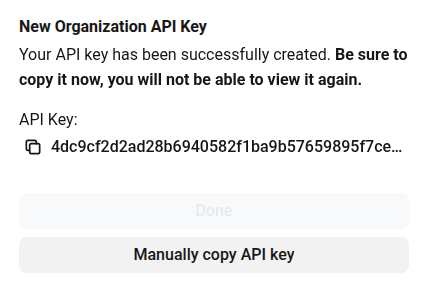
After you close this window, the list shows only the start of the key.
Use the key
Send the key in the header of each API request:
Authorization: Bearer <your API key>
Older integrations send the key as the user name in HTTP Basic authentication, with an empty password. This still works.
When the key is missing, wrong, expired or revoked, the API answers with 401.
Replace a key before it expires
A key that expires stops working on its expiry date. To change keys without a break:
- Create a new key.
- Put the new key into your system.
- Revoke the old key.
Revoke a key
Revoke a key when you no longer use it, or when someone may know it who must not.
- On the API keys page, click … in the row of the key.
- Click Revoke API key.
- Click Revoke key.
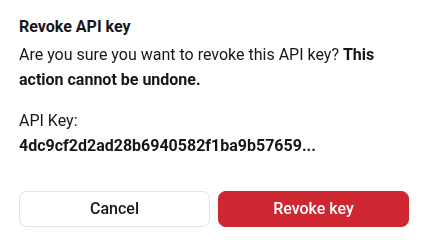
A revoked key stops working. You cannot undo this.
Good to know
- The key belongs to the account, not to the person who created it.
- An API key that you got from optilyz before keeps working. You do not have to replace it.
- Treat the key like a password. Do not send it by email and do not put it into a web page or an app that runs in the browser.
- To change the name of a key, click … in its row and then Edit name.