
This guide shows you how to choose which emails you get from optilyz.
Your choices are for you only, and for the account you have open. If you belong to more than one account, select it under Account in the sidebar first.
Open the page
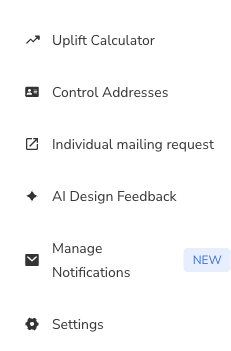
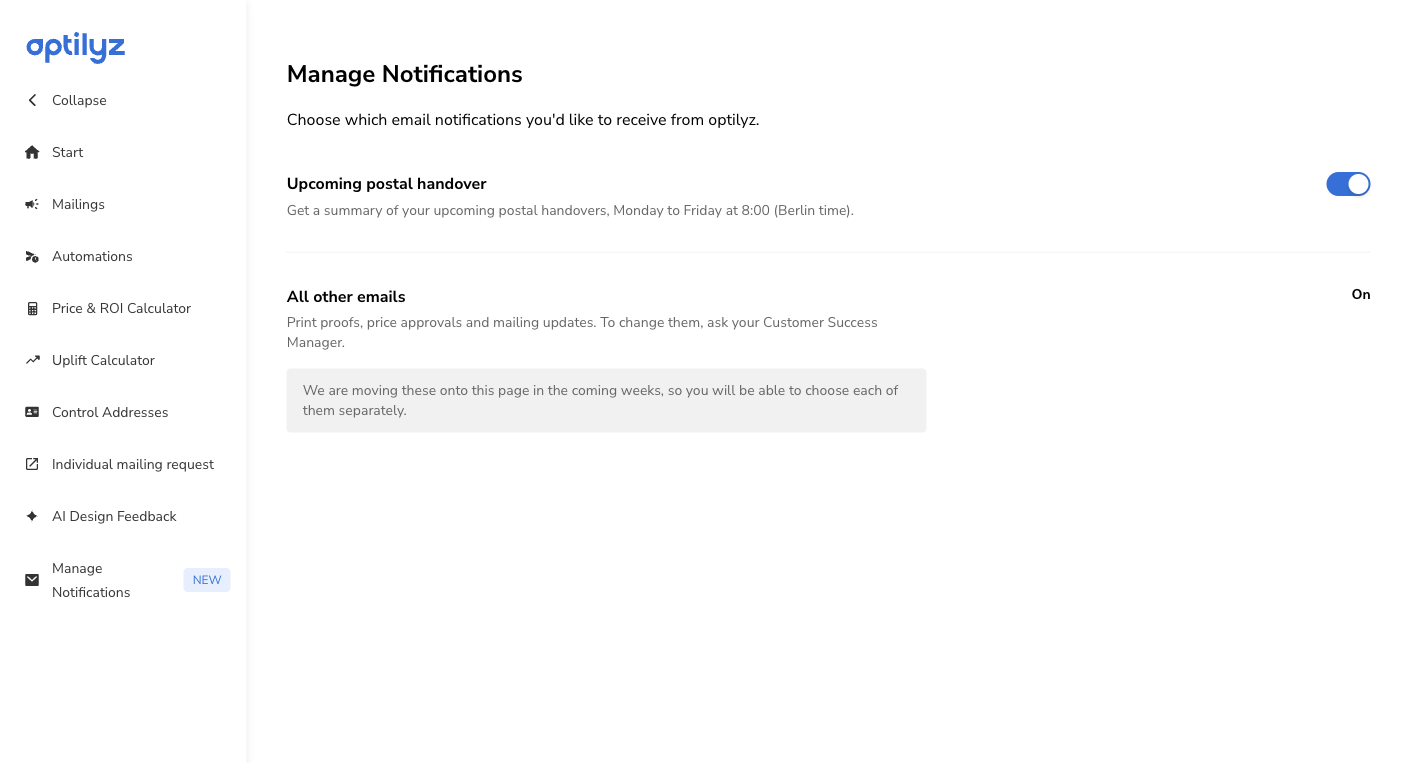
In the sidebar, click Manage Notifications.
Switch an email off or on
Click the switch of the email. The page saves your choice at once.
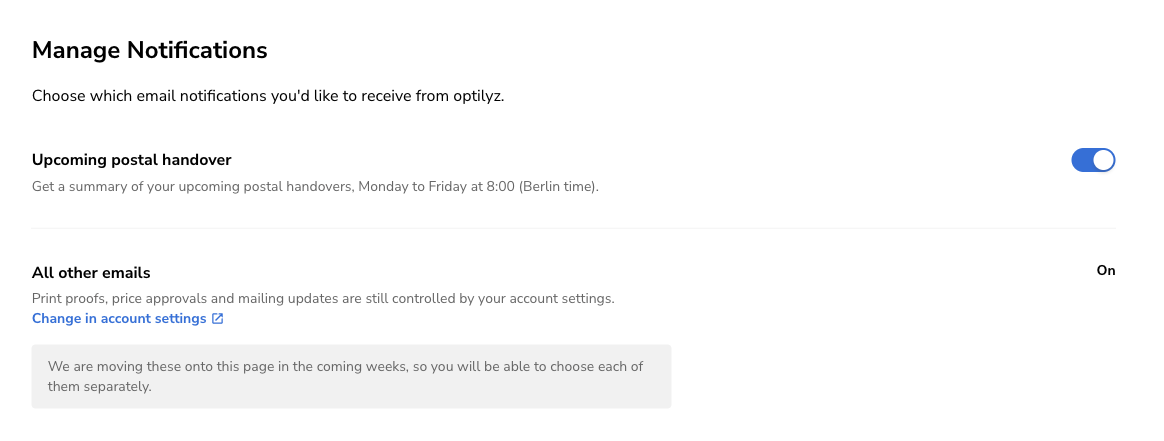
All other emails
The row All other emails covers the emails that are not on the page yet, for example print proofs and price approvals. It shows On or Off.
To change them, click Change in account settings. Switch Unsubscribe from emails on or off, and click Save. The account settings are only available in English.

If you open optilyz from Emarsys, Salesforce Marketing Cloud or Dymatrix
The sidebar has no Settings entry, and the row has no link. Ask your Customer Success Manager to change these emails for you.
Good to know
- If Unsubscribe from emails is on, the switches on this page start off. You can still switch an email on here. Your choice on this page then counts, also if you change Unsubscribe from emails later.
- You cannot switch off the emails that help you log in, for example an invitation or a password reset.
- If emails to your address could not be delivered, or were marked as spam, optilyz stops sending emails to that address. Ask your Customer Success Manager.